
Sounds simple written out like that. It is, once you've done it a few times. The mistakes almost always happen in the details, not the big picture.
How do I place the order?
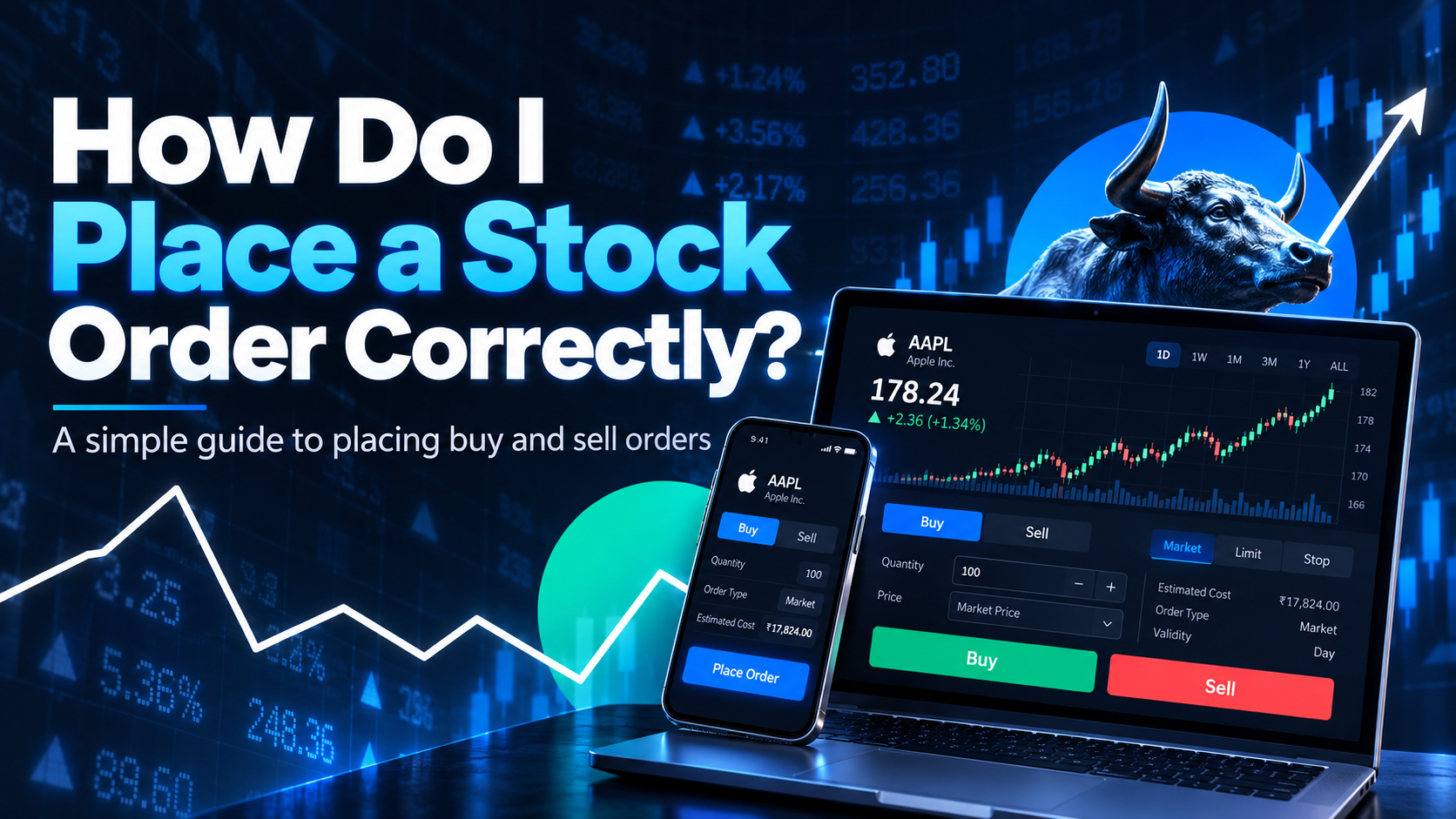
Open your broker's app or platform, search for the stock, and hit buy or sell. From there you pick an order type, market or limit being the two most common, enter how many shares you want, and set a price if you're using a limit order. Review everything once, then submit.
That's the short version. The part that actually matters is what happens in each of those steps, since a rushed click on the wrong field is how most order mistakes happen.
How to place a stock order step by step?
Here's the full sequence, seven steps from opening the app to knowing your order went through.
- Log into your trading platform: Make sure your account is funded and you can see your available margin or balance before you start.
- Search for the stock: Use the correct ticker symbol, not just the company name, since some names are close enough to confuse.
- Choose buy or sell: This sounds obvious until you're moving fast and select the wrong one by habit.
- Pick your order type: Market order fills immediately at the current price. Limit order only fills at a price you set or better. Stop-loss orders trigger a sale once a price is hit, protecting you from a bigger drop.
- Enter quantity and price: For a limit order, set the exact price you're willing to buy or sell at. Double-check the quantity field, a stray zero here is an expensive typo.
- Review the order summary: Most platforms show you a confirmation screen with stock, quantity, order type, and price before you submit. Actually read it.
- Confirm and track the order status: Once submitted, check whether it's pending, executed, or rejected. Don't assume it went through just because you clicked confirm.
Skipping step six is where a lot of beginner mistakes come from. That confirmation screen exists specifically to catch errors before they become real trades.
What are examples of stock market orders?
A handful of order types cover most of what you'll actually use, and each one behaves differently.
- Market order, buys or sells immediately at whatever price is currently available. Fast, but you don't control the exact price.
- Limit order, only executes at your specified price or better. You control the price, but there's no guarantee it fills.
- Stop-loss order, sits inactive until the stock hits a price you set, then triggers a market sale to limit your loss.
- Stop-limit order, similar to a stop-loss, but once triggered, it becomes a limit order instead of a market order, giving you more price control at the cost of a guaranteed fill.
- Bracket order, combines an entry order with a built-in target and stop-loss, useful for intraday trading where you want the exit planned before you're even in the trade.
Start with market and limit orders until you're comfortable. The rest become useful once you understand why plain buying and selling sometimes isn't precise enough.
Check: Explore the Stocks-Screener
How do you specify what kind of order you want to place?
You specify it through a few fields on your trading platform, not by typing a sentence. Select buy or sell, pick the order type from a dropdown or toggle, enter your quantity, and if it's a limit or stop order, enter your target price too.
Every platform lays these out slightly differently, but the fields themselves are standard. If you're ever unsure what a field does, check it before submitting rather than guessing, since an order type mismatch is one of the easier mistakes to make and one of the more annoying ones to undo.
What happens after you submit an order?
Your order doesn't disappear into a void. It moves through a status you can actually track.
Pending means it's been sent but hasn't matched yet, common for limit orders waiting for the market to reach your price. Executed means it's done, shares have changed hands. Partially filled means only some of your requested quantity matched, which can happen in less liquid stocks. Rejected means something stopped it, insufficient funds, an invalid price, or a market that's currently closed.
Check your order status after placing it, especially for limit orders that might sit unfilled for a while. Don't assume silence means success.
Common mistakes when placing an order
- Confusing market and limit orders: A market order fills fast but at whatever price is available, which can be worse than expected in a fast-moving or illiquid stock. A limit order controls price but might never fill.
- Fat-fingering the quantity: Typing 1000 instead of 100 is a classic, expensive mistake. That confirmation screen exists for exactly this reason, use it.
- Forgetting to check order validity: Some orders are set to expire at the end of the day, others carry forward. Know which one you're placing so you're not surprised tomorrow.
- Placing an order without a plan for the exit: Buying a stock without deciding your stop-loss or target first means you're improvising a decision you should have made calmly beforehand.
Getting comfortable with order placement matters more than it seems, since a mechanical mistake, wrong order type, wrong quantity, can undo good strategy work in seconds. Neostox lets you practice every order type covered here, market, limit, stop-loss, and more, on live NSE and BSE conditions using virtual money, so the muscle memory is already built before real capital is on the line.