
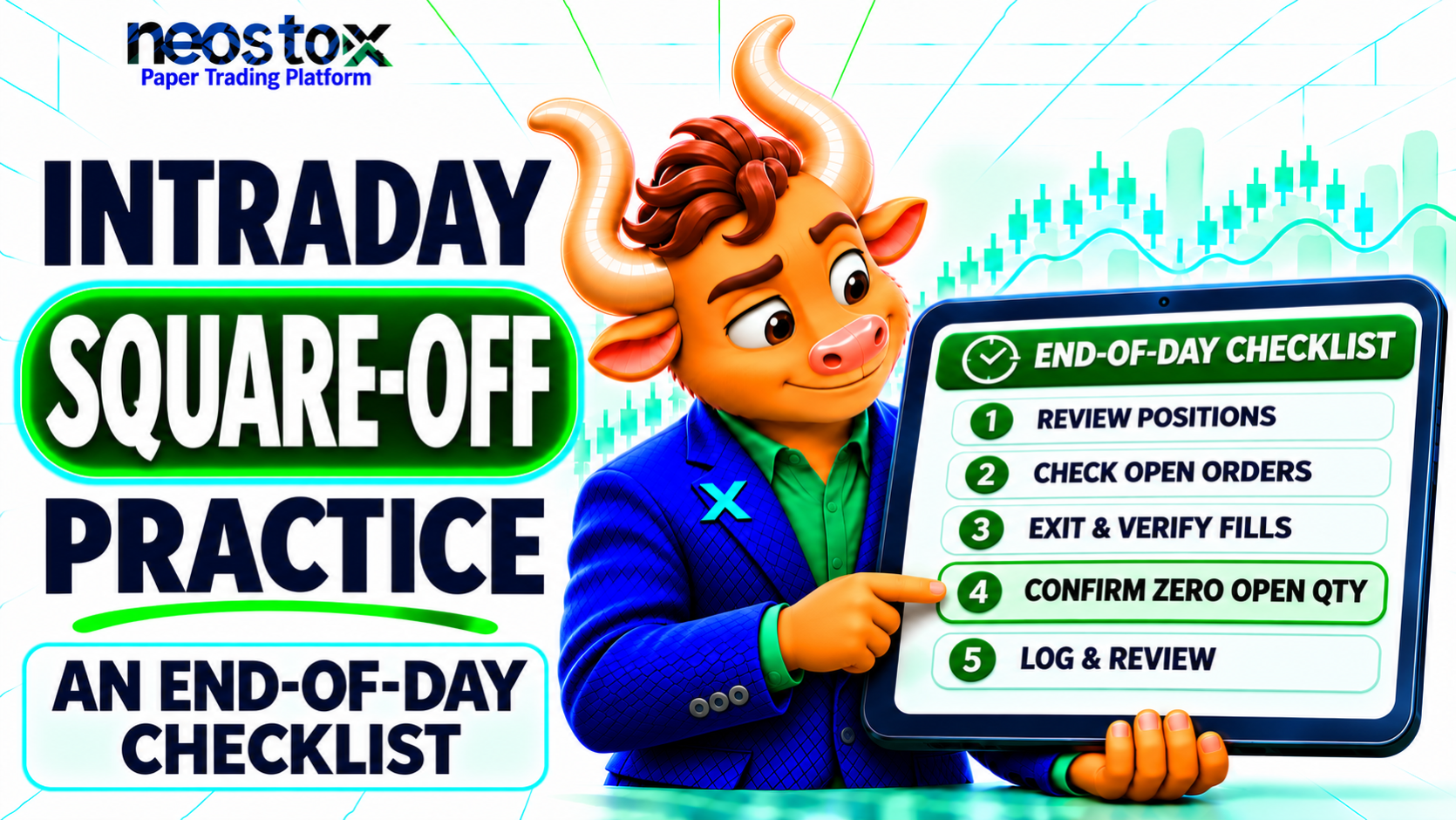
All prices and quantities in this guide are hypothetical and for education only.
What Does "Square Off" Mean in Paper Trading?
Squaring off means closing an open position by placing an opposite-side order for the same quantity. In paper trading, nothing reaches an exchange. The simulator records a virtual exit, and your virtual profit or loss is fixed for the closed quantity. If you bought 40 shares, you square off by selling 40. If you shorted 20, you square off by buying back 20.
Square Off vs Cancel an Order vs Exit a Position
These three actions sound alike but do different things.
| Action | What it affects | Does it close a filled trade? |
|---|---|---|
| Square off or exit | An open, filled position | Yes, once the exit order fills |
| Cancel an order | An order that has not filled | No |
| Modify an order | The price or quantity of a pending order | No |
Cancelling a pending exit does not close anything. Before you treat a trade as finished, check the order status and the remaining quantity.
How to Square Off a Paper Trading Position in 5 Steps
These steps are platform-neutral. Button names differ between simulators, so match each step to what your own screen shows.
- Open the Positions screen.
- Select the open paper trade.
- Choose Close, Exit or Square Off.
- Confirm the side, quantity and price.
- Verify that the remaining quantity is zero.
Step 1: Open the Positions Screen
Find the screen that lists your open virtual trades. It may be called Positions, Portfolio or Open Trades. Look for a trade that has already filled. Pending orders are usually listed elsewhere, such as an order list. Note the platform and date you tested on, so you can reproduce the steps.
Step 2: Select the Open Paper Trade
Pick the trade you want to close and check three fields: the symbol, the side (long or short) and the open quantity. Do not confuse the order history with the position list. An order that filled earlier appears in history, but only the position list shows what is still open.
Step 3: Choose Close, Exit or Square Off
Look for a control labeled Close, Exit or Square Off. Some simulators offer one. Others expect you to place an opposite-side order yourself: a sell for a long, a buy for a short. Either way, the simulator records an opposite-side exit. Do not assume your platform has a one-click button. If you cannot find one, place the opposite order manually and check the quantity.
Step 4: Confirm Side, Quantity and Price
Before you submit, check this list:
- Side: sell to close a long, buy to cover a short
- Quantity: no more than the open quantity
- Order type: market for an immediate fill, or limit at your price
- Result: the preview shows the exit you intend
A wrong side or an oversized quantity can open a new opposite position instead of closing yours. If you only want to reduce the position, enter the smaller quantity.
Step 5: Verify the Remaining Quantity Is Zero
Submitting is not the same as closing. Check that the exit order shows as filled, then check that the open quantity reads zero. Look at your trade history for the exit price and your P&L for the result. If the order is still pending, the position is still open.
Long, Short and Partial Square-Off Explained
The closing side depends on how you opened. The quantity decides whether the position ends or shrinks.
| Position | To square off | Units | Result |
|---|---|---|---|
| Long (bought) | Sell | Same as open quantity | Position closed |
| Short (sold) | Buy to cover | Same as open quantity | Position closed |
| Either, partial | Opposite side | Fewer than open quantity | Balance stays open |
Long vs Short Positions
For a virtual long, square-off means selling the same quantity you bought. For a virtual short, it means buying back the same quantity you sold. This is a cover, not a fresh trade. Buying back less than you are short only reduces the position. Buying back more than you are short closes it and opens a new long for the extra, so check the numbers.
Partial Square-Off: What Stays Open?
A partial square-off closes only the quantity you enter. Say you hold 40 shares and close 10. The position now shows 30 open. The 10 you closed are realized. The 30 are not. Only a full close brings the open quantity to zero. Not every simulator supports partial exits, so test it on a small trade first. How to practice partial profit booking in paper trading covers it in more detail.
Worked Paper-Trade Examples (India)
Both examples use hypothetical NSE equity prices. They are illustrative, not market data, and they exclude costs and margin.
Example A: Close a Simulated Long
You buy 40 shares at ₹250. The price rises and you sell all 40 at ₹255.
| Step | Detail |
|---|---|
| Open | Buy 40 at ₹250 |
| Exit | Sell 40 at ₹255 |
| Gross P&L | 40 × (₹255 − ₹250) = ₹200 |
| Open quantity after | 40 − 40 = 0 |
If you had sold only 10 at ₹255, the realized gross profit would be 10 × ₹5 = ₹50, and 30 shares would stay open.
Example B: Close a Simulated Short
You short 20 shares at ₹300. The price falls and you buy 20 back at ₹296.
| Step | Detail |
|---|---|
| Open | Sell (short) 20 at ₹300 |
| Exit | Buy to cover 20 at ₹296 |
| Gross P&L | 20 × (₹300 − ₹296) = ₹80 |
| Open quantity after | 20 − 20 = 0 |
For a short, profit comes when the exit price is lower than the entry. If the buy-back had been at ₹304, the gross result would be a loss of 20 × ₹4 = ₹80.
When Should You Close a Paper Intraday Trade?
Close it when your plan says to: at your target, at your stop, or before the session ends if your plan is to trade only within the day. An intraday trade is meant to open and close in one session. Do not rely on the simulator to close it for you unless you have checked its rules.
NSE Hours vs Broker vs Simulator Rules
Three different clocks can apply, and they are not interchangeable.
| Clock | Who sets it | What it tells you |
|---|---|---|
| Exchange hours | NSE | When the market is open. Regular equity cash trading runs 9:15 am to 3:30 pm IST. |
| Broker cut-off | The broker | When a real broker closes live intraday positions. It is the broker's own rule. |
| Simulator rule | The simulator | If, and when, virtual positions close automatically. It may differ from both. |
Derivatives hours can differ from equity cash hours and may be revised, so check NSE's current notice for your segment. Exchange closing time and a broker's cut-off are not the same thing. As Neostox's own guide on intraday trading for beginners puts it, a broker deadline is not the same as the exchange's actual closing time. Neither tells you when a paper simulator closes virtual positions. Neostox's paper trading platform page says virtual trades are placed during market hours.
If the Simulator Leaves Positions Open Overnight
Some simulators leave an open position in place until you close it. Others close it at a set time. If yours keeps it open, you exit at a later price, and the result can differ from your plan because a market can open away from the previous close. Test what your platform does with one small position, and write down what you see.
Manual vs Auto Square-Off: Paper vs Live
In live trading, a broker may close intraday positions at its own cut-off. In paper trading, auto-close depends on the simulator. Do not carry live-broker rules, charges or penalties into a simulation.
| Point | Paper simulator | Live broker |
|---|---|---|
| Who closes the position | You, or a simulator rule | You, or the broker's auto square-off |
| Cut-off time | Set by the simulator, if any | Set by the broker |
| Charges and penalties | Simulated or none | Real brokerage, taxes and any broker fees |
| Exit price | Simulated fill | Real market price at that moment |
When a Simulator May Auto-Close
A simulator may close intraday positions at the end of the session, at a time you set, or not at all. Neostox's FAQ says positions placed as intraday orders are automatically squared off according to the platform's applicable square-off rules. It does not give a time, so check the current rule in your account before you depend on it. A target or stop-loss that triggers also closes a position. Targets and stop-losses on Neostox can be entered as a fixed price or a percentage, according to the same FAQ.
How Live Broker Rules Differ
In real trading, each broker sets its own cut-off, product names and charges, and auto-closed trades can fill at whatever price is available. That is why live rules should never be copied into a simulator guide. Neostox's guide to how intraday trading charges work explains the real-world costs, and your broker's own rate card has the current figures.
What If the Paper Position Does Not Close?
Check the exit order's status before you do anything else. Do not send repeated opposite orders. Each one can add to your position or reverse it.
Pending or Rejected Exit Status
Status names differ by platform, so read the label on your own screen.
| Status | What it usually means | Position still open? | What to check |
|---|---|---|---|
| Filled | The exit executed | Only if quantity remains | Open quantity |
| Pending | The order is waiting, often at a limit price | Yes | Limit price vs current price |
| Rejected | The simulator refused the order | Yes | The message, quantity and side |
| Cancelled | The order was withdrawn | Yes | Whether you cancelled it |
A pending limit order fills only at your price or better. If the market never reaches it, the position stays open.
Partial Fill or Wrong Quantity
If an exit fills in part, subtract the filled quantity from the open quantity. For example, an exit for 40 that filled 25 leaves 15 open. If the quantity you entered was wrong, check the position list before you try again. Not every simulator models partial fills, so do not assume yours does.
Cancelled Order vs Closed Position
A cancelled order never executed. A closed position had a filled exit. If you cancel an exit order, your earlier filled position is untouched and remains open. Check the position list to confirm which of the two you have.
After Square-Off: P&L and Trade Journal
After the exit, your simulated P&L is fixed for the closed quantity. It reflects the modelled entry and exit prices, your position size and any assumed costs. It is not cash profit. Realised vs unrealised P&L shows the difference using a partial exit.
What to Record After the Exit
Log each closed trade the same day:
- Setup: symbol, side and why you entered
- Entry and exit: price and time for each
- Quantity: closed and, if partial, remaining
- Exit reason: target, stop, plan or mistake
- Slippage: gap between the price you wanted and the fill
- Result: gross and net virtual P&L, with costs marked as assumed
Add a sample row, such as: Long 40, ₹250 in, ₹255 out, target hit, slippage none, gross ₹200. Neostox's trading reports show simulated P&L, win rate, margin and costs, but they cannot show your reason for exiting.
Common Mistakes to Avoid
- Buying to close a long: Use the opposite side: sell a long, buy back a short.
- Entering too large a quantity: An oversized exit can open a new position. Match the open quantity.
- Treating a cancel as a close: Cancelling stops an unfilled order and nothing else.
- Leaving a stale order working: A forgotten target or stop can fire later. Review open orders after each exit.
- Assuming auto square-off: Check your simulator's own rule before relying on it.
- Skipping verification: Confirm the fill and a zero quantity every time.